
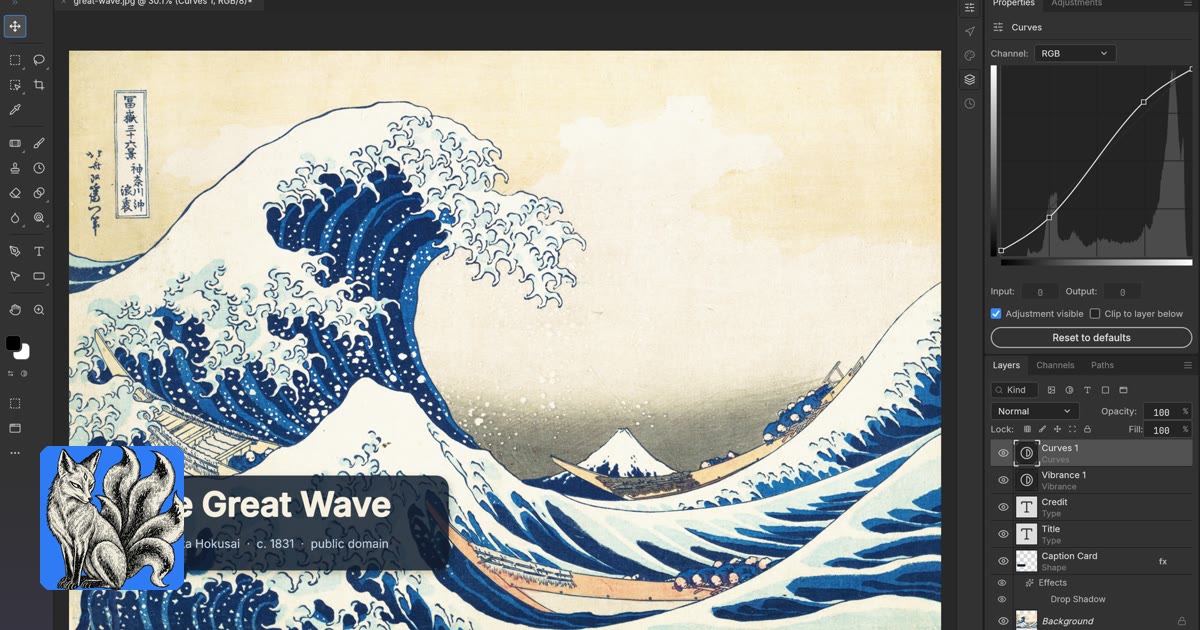

When developers encounter proprietary software that forms a critical part of a workflow, they often want an open, extensible, and performant alternative. photocraft addresses this need as a clean-room reimplementation of Adobe Photoshop, built from scratch in pure Rust. With 12,829 stars on GitHub, photocraft shows strong community interest. This article examines the technical underpinnings, design philosophy, practical applications, and contribution pathways for the project, helping developers understand its potential and how to engage with it.
The Core Philosophy
photocraft exists to provide a modern, performant, and transparent alternative to proprietary image manipulation software, specifically Adobe Photoshop. The "clean-room reimplementation" aspect is central to this. It means photocraft is developed entirely independently, without reference to Adobe's proprietary source code. This choice impacts the project's architecture and trade-offs.
A problem the maintainers explicitly chose not to solve, at least in the initial stages, is direct compatibility with Adobe Photoshop's vast ecosystem of third-party plugins. While achieving feature parity with Photoshop's core capabilities is a primary goal, the clean-room approach means photocraft cannot simply "load" existing Photoshop plugins. This decision is a calculated trade-off: it sacrifices immediate, broad plugin compatibility for long-term architectural purity, legal clarity, and the freedom to design a superior, Rust-native plugin API. The rationale is that building a new, strong API specific to Rust and photocraft will lead to a more stable, performant, and secure plugin ecosystem, free from the constraints and technical debt of legacy Photoshop APIs.
This leads to several design trade-offs. Performance and memory safety are paramount, driven by the choice of Rust. photocraft uses Rust's zero-cost abstractions, fearless concurrency, and strict type system to build an image editor that is feature-rich, fast, and reliable. This focus sometimes means prioritizing low-level control and explicit memory management over the absolute simplest high-level API design. Developers working with photocraft are expected to appreciate and benefit from these Rust-centric characteristics.
The project's philosophy differs from its closest open-source competitors, such as GIMP or Krita, primarily in its explicit goal to be a "reimplementation of Adobe Photoshop." While GIMP and Krita are powerful editors in their own right, they have evolved with their own distinct user interfaces, workflows, and underlying architectures. photocraft, by contrast, mirrors Photoshop's core functionality and, crucially, its file format compatibility (PSD) as closely as possible, but with a fundamentally different, modern technology stack. This makes it an attractive proposition for developers accustomed to Photoshop's capabilities who seek an open-source tool built on sound, contemporary principles.
photocraft incorporates opinionated defaults that reflect Rust's strengths: a strong emphasis on data integrity, immutability where sensible, and explicit error handling. For instance, color management or image processing pipeline defaults might prioritize accuracy and consistency across different platforms, using well-tested Rust crates for these domains. This opinionated approach reduces guesswork for developers and aims to establish a high bar for correctness and quality from the outset.
A Practical Use-Case Walkthrough
Imagine a developer needs to automate a complex image processing pipeline for a web application. They need to ingest PSD files, apply a specific filter (e.g., a "vignette" effect), optimize them, and then export them into a web-friendly format like WebP, all without human intervention. While a full GUI would be required for interactive editing, photocraft's underlying Rust libraries work programmatically for such tasks.
Here's how a developer might approach this, assuming photocraft exposes a CLI tool or a Rust library for programmatic manipulation:
Starting State: The developer has a directory of .psd files (./input/) and needs to apply a custom filter and convert them to optimized .webp images in an ./output/ directory. They've identified that photocraft offers the necessary capabilities.
Step-by-step process:
-
Project Setup: The developer first ensures
photocraft's CLI tools or library are available. For programmatic use, they'd addphotocraftas a dependency to theirCargo.toml. -
CLI Execution (Hypothetical): If
photocraftprovides a CLI for batch operations, the process could look like this. The--filterargument specifies a built-in or custom filter (let's assume "vignette" for now), and--output-formathandles the conversion.# Assuming 'photocraft-cli' is the name of the executable # and it supports batch processing photocraft-cli batch-process \ --input-dir "./input" \ --output-dir "./output" \ --filter vignette \ --strength 0.6 \ --radius 0.8 \ --output-format webp \ --quality 85 \ --log-level info ``` This command iterates through all `.psd` files in `./input`, applies a vignette filter with specified parameters, optimizes the output quality, and saves the resulting `.webp` files to `./output`. The `log-level` ensures that progress and any warnings are reported. 3. **Programmatic Integration (Alternative/Complementary):** For more fine-grained control or integration into an existing Rust application, the developer would use `photocraft` as a library. This allows for custom logic, dynamic filter application, or integration with other Rust-based services. ```rust // src/main.rs - A simplified example of programmatic use use photocraft_core::{Image, Layer, Filter, PsdParser}; use std::path::{Path, PathBuf}; fn main() -> Result<(), Box> { let input_dir = PathBuf::from("./input"); let output_dir = PathBuf::from("./output"); for entry in std::fs::read_dir(&input_dir)? { let entry = entry?; let path = entry.path(); if path.extension().map_or(false, |ext| ext == "psd") { println!("Processing: {:?}", &path); // 1. Load the PSD file let mut image = PsdParser::load(&path)?; // 2. Apply a filter (hypothetical VignetteFilter) // In a real scenario, filters would be structs implementing a Filter trait image.apply_filter(&VignetteFilter { strength: 0.6, radius: 0.8 })?; // 3. Save as WebP let output_path = output_dir.join(path.with_extension("webp").file_name().unwrap()); image.save_to_webp(&output_path, 85)?; println!("Saved to: {:?}", &output_path); } } Ok(()) } // Placeholder for a hypothetical filter struct and implementation struct VignetteFilter { strength: f32, radius: f32, } impl Filter for VignetteFilter { fn apply(&self, image: &mut Image) -> Result<(), String> { // Complex image processing logic would go here // This would involve pixel manipulation, blending, etc. println!( " Applying Vignette filter (strength: {}, radius: {})", self.strength, self.radius ); // Simulate filter application Ok(()) } }**End Result:** The developer now has an automated pipeline that processes PSD files, applies desired effects, and exports them to optimized WebP, all powered by `photocraft`'s Rust-native capabilities. This shows how `photocraft` can be more than just a desktop application; it can be a backend library for sophisticated image processing workflows. ## The Actual Tech Stack `photocraft` is powered by **Rust**, a language known for its performance, memory safety, and concurrency guarantees. This choice is fundamental to the project's ability to tackle a resource-intensive domain like image editing while maintaining stability and speed. The project's data structure revolves around efficient parsing and manipulation of the PSD (Photoshop Document) file format. A core component of `photocraft` is likely a highly optimized PSD parser and serializer, capable of interpreting the complex layer structure, pixel data, adjustment layers, and metadata that constitute a PSD file. Image data itself is typically represented using tightly packed arrays or specialized image buffers, often managed by battle-tested crates such as `image` or `imgref` in the Rust ecosystem. Layers within an image are likely represented as a vector or similar collection of `Layer` structs, each containing its own pixel data, blend mode, opacity, and transformation information. This modular approach allows for efficient manipulation and rendering of complex compositions. Configuration within a Rust project like `photocraft` typically uses a `Cargo.toml` file for build definitions and dependencies. Application-specific configurations might be handled via a dedicated `config.toml` or `config.ron` (Rusty Object Notation) file, or even environment variables for deployment. The build approach for `photocraft` is standard for Rust projects: it uses `cargo`, Rust's integrated package manager and build system. Developers use `cargo build` to compile the project and `cargo run` to execute it. For deployment, `photocraft` would likely produce statically linked binaries, a common advantage of Rust, making deployment straightforward without requiring specific runtimes on the target system. This results in self-contained applications that are easy to distribute. A typical `photocraft` project structure, focusing on its core library and potential application, might look like this:photocraft/ ├── Cargo.toml # Project manifest and dependencies ├── Cargo.lock # Exact dependency versions ├── src/ │ ├── main.rs # Main application entry point (e.g., CLI or GUI app) │ ├── lib.rs # Core library code, image processing algorithms │ ├── psd/ # PSD parsing and serialization logic │ │ ├── mod.rs │ │ ├── layer.rs │ │ └── reader.rs │ ├── filters/ # Image filter implementations │ │ ├── mod.rs │ │ └── vignette.rs │ ├── core/ # Fundamental image data structures (Image, Pixel, Color) │ │ ├── mod.rs │ │ └── image.rs │ └── ui/ # (Optional) GUI related components if a desktop app │ └── mod.rs ├── tests/ # Integration and unit tests │ └── psd_loading.rs ├── benches/ # Benchmarks for performance-critical sections ├── README.md # Project description ├── LICENSE # Project license (Apache-2.0) └── .github/ # GitHub specific configurations (CI/CD, issue templates)This structure outlines a modular architecture where distinct concerns – PSD parsing, image core, filters, and application logic – are separated into their own modules, promoting maintainability and reusability. ## Building or Extending It Getting `photocraft` up and running locally, or integrating its capabilities into your own Rust project, is a straightforward process for anyone familiar with the Rust toolchain. **To clone, install, and run locally:** First, ensure you have Rust and Cargo installed. If not, follow the instructions at [rustup.rs](https://rustup.rs/). 1. **Clone the repository:**git clone https://github.com/storytold/photocraft.git cd photocraft2. **Build the project:** This compiles the core library and any executables (like a CLI or GUI application).cargo build --releaseThe `--release` flag optimizes the build for performance, which is important for an image editor. 3. **Run the application:** If `photocraft` includes a CLI tool (e.g., `photocraft-cli` as assumed in the use-case) or a GUI application, you can execute it:# For a CLI tool ./target/release/photocraft-cli --version # For a GUI application (if `photocraft` provides one directly) ./target/release/photocraftThe exact command depends on the binary name defined in `Cargo.toml`. **Extending or Customizing `photocraft`:** To extend `photocraft`, you would typically interact with its core library. Let's say you want to add a new image filter, "SepiaTone," to the `photocraft` library.// In photocraft/src/filters/sepia_tone.rs (new file) use crate::core::image::{Image, Pixel}; // Assuming these paths pub struct SepiaToneFilter { // No specific parameters for a basic sepia tone } impl SepiaToneFilter { pub fn new() -> Self { SepiaToneFilter {} } } // Assuming a `Filter` trait exists in `src/filters/mod.rs` // that defines an `apply` method. impl super::Filter for SepiaToneFilter { fn apply(&self, image: &mut Image) -> Result<(), String> { // Iterate over each pixel and apply the sepia transformation for y in 0..image.height() { for x in 0..image.width() { let pixel = image.get_pixel_mut(x, y); if let Some(p) = pixel { let r = p.r as f32; let g = p.g as f32; let b = p.b as f32; let new_r = (0.393 * r + 0.769 * g + 0.189 * b).min(255.0); let new_g = (0.349 * r + 0.686 * g + 0.168 * b).min(255.0); let new_b = (0.272 * r + 0.534 * g + 0.131 * b).min(255.0); p.r = new_r as u8; p.g = new_g as u8; p.b = new_b as u8; } } } Ok(()) } } // In photocraft/src/filters/mod.rs (existing file) // Add your new filter to the module pub mod sepia_tone; // Make the new filter public // And potentially update the Filter trait and/or an enum of available filters pub trait Filter { fn apply(&self, image: &mut Image) -> Result<(), String>; }This snippet shows how to introduce a new filter, `SepiaToneFilter`, by creating a new module, defining its structure, and implementing a common `Filter` trait. This modular approach allows for expansion of `photocraft`'s capabilities. **A note on memory:** When working with image processing in Rust, especially on large images, memory consumption can be significant. While Rust is memory-safe, it uses a lot of memory. Be mindful of image dimensions and channel depths when designing filters or processing pipelines. Benchmarking your filter implementations with `cargo bench` and profiling memory usage with tools like Valgrind or `dhat-rs` is recommended to prevent performance bottlenecks or out-of-memory errors, particularly in long-running batch processes. Optimizing pixel access patterns and avoiding unnecessary allocations are critical for high-performance image manipulation. ## Contributing to the Project Contributing to `photocraft` involves a structured process designed to maintain code quality, consistency, and align with the project's vision. **When to Open an Issue vs. Go Straight to a PR** * **Open an Issue FIRST:** For structural changes, new feature requests (e.g., "Implement content-aware fill," "Add support for ACEScg color space"), architectural discussions, or major refactorings. This allows for community discussion, alignment with maintainers' priorities, and ensures your effort is well-directed before you write significant code. Provide a clear problem statement, proposed solution, and potential impact. * **Go Straight to a PR:** For content fixes (typos in documentation or comments), small bug fixes (e.g., a specific filter producing slightly incorrect colors on edge cases), minor performance improvements, or improvements to existing tests. These are typically self-contained and do not require extensive architectural debate. **Step 1: Fork, Clone, Install** 1. **Fork the repository:** On GitHub, navigate to `storytold/photocraft` and click the "Fork" button. 2. **Clone your fork locally:**git clone https://github.YOUR_USERNAME/photocraft.git cd photocraft3. **Add the upstream remote:** This allows you to sync with the main project.git remote add upstream https://github.com/storytold/photocraft.git4. **Install dependencies and build:**cargo buildEnsure all tests pass before making changes: `cargo test`. **Step 2: Locate the Correct File and Follow Conventions** * **File Location:** Based on the project structure, locate the relevant module. For a new filter, it would be `src/filters/`; for PSD parsing improvements, `src/psd/`. * **Naming Conventions:** Adhere to Rust's idiomatic naming conventions: `snake_case` for functions and variables, `PascalCase` for types (structs, enums, traits). File names typically reflect the module name (e.g., `sepia_tone.rs` for `SepiaToneFilter`). * **Formatting:** Use `rustfmt` to ensure consistent code style. Run `cargo fmt` before committing. * **Documentation:** Add clear, concise `///` doc comments for public items (functions, structs, enums, traits) explaining their purpose, arguments, and return values. **Step 3: Quality Bar for Contributions** Maintainers typically look for: * **Correctness:** Does the code do what it claims without introducing new bugs? * **Performance:** Is the implementation efficient, especially for image processing? Avoid unnecessary allocations or expensive operations in loops. * **Idiomatic Rust:** Does the code follow Rust's best practices, using its type system, error handling (`Result`, `Option`), and concurrency primitives effectively? * **Test Coverage:** New features or bug fixes should come with corresponding unit and/or integration tests. * **Clarity and Readability:** Is the code easy to understand and maintain? * **Alignment with Vision:** Does the contribution fit `photocraft`'s core mission as a clean-room Photoshop reimplementation? Features that deviate too much or are highly niche might be rejected unless they have a strong rationale. **Step 4: Open a PR** 1. **Create a new branch:**git checkout -b feature/your-awesome-filter2. **Commit your changes:** Write clear, concise commit messages.git add . git commit -m "feat: add SepiaTone filter"3. **Push to your fork:**git push origin feature/your-awesome-filter -
Open a Pull Request: On GitHub, navigate to your fork, and you'll see a prompt to open a PR to
storytold/photocraft.- Title Convention: Follow a conventional commit style if the project uses one (e.g.,
feat: Add SepiaTone filter,fix: Correct PSD layer blending issue,docs: Update build instructions). - Description Checklist: Provide a detailed description including:
- What problem this PR solves.
- How it solves it (technical details).
- Any relevant tests added.
- Screenshots or example outputs for visual changes.
- Reference any related issues (e.g.,
Closes #123,Fixes #456). - A checklist for maintainers to review (e.g., "Code passes
cargo fmt", "All tests pass").
- Post-Merge: After your PR is reviewed, potentially revised, and approved, a maintainer will merge it into the
mainbranch. Celebrate your contribution to the open-source community!
- Title Convention: Follow a conventional commit style if the project uses one (e.g.,
Closing Thoughts
photocraft addresses the need for a modern, performant, and transparent alternative in image editing.
Here are three actionable takeaways for developers:
- Leverage Rust's Strengths:
photocraftis an example of Rust's application in high-performance, memory-safe domains. Developers seeking to build robust system-level applications, especially those dealing with complex data like image formats, can studyphotocraft's architecture for best practices. - Automate Image Workflows: Beyond its potential as a desktop application,
photocraft's underlying Rust libraries offer programmatic capabilities for batch processing, filter application, and format conversion. This makes it a tool for developers building automated image pipelines or integrating advanced image manipulation into their applications. - Contribute to a Visionary Project: The project's clean-room approach to reimplementing Photoshop is ambitious and technically challenging. Contributing, whether by fixing bugs, improving documentation, or adding new features, allows developers to shape the future of open-source creative tools and deepen their understanding of Rust and image processing.
Explore the future of open-source image editing and consider contributing to photocraft today. Visit its home on Fossy.dev to learn more and get involved: https://fossy.dev/storytold/photocraft.